Ping Monitor
With the Ping Monitor you can monitor one or multiple hosts with ICMP echo requests to determine whether each host is reachable.
ICMP (Internet Control Message Protocol) is a network-layer protocol used to send diagnostic and control messages. An ICMP echo request (commonly known as a ping) asks a remote host to send back an echo reply, confirming it is reachable on the network.
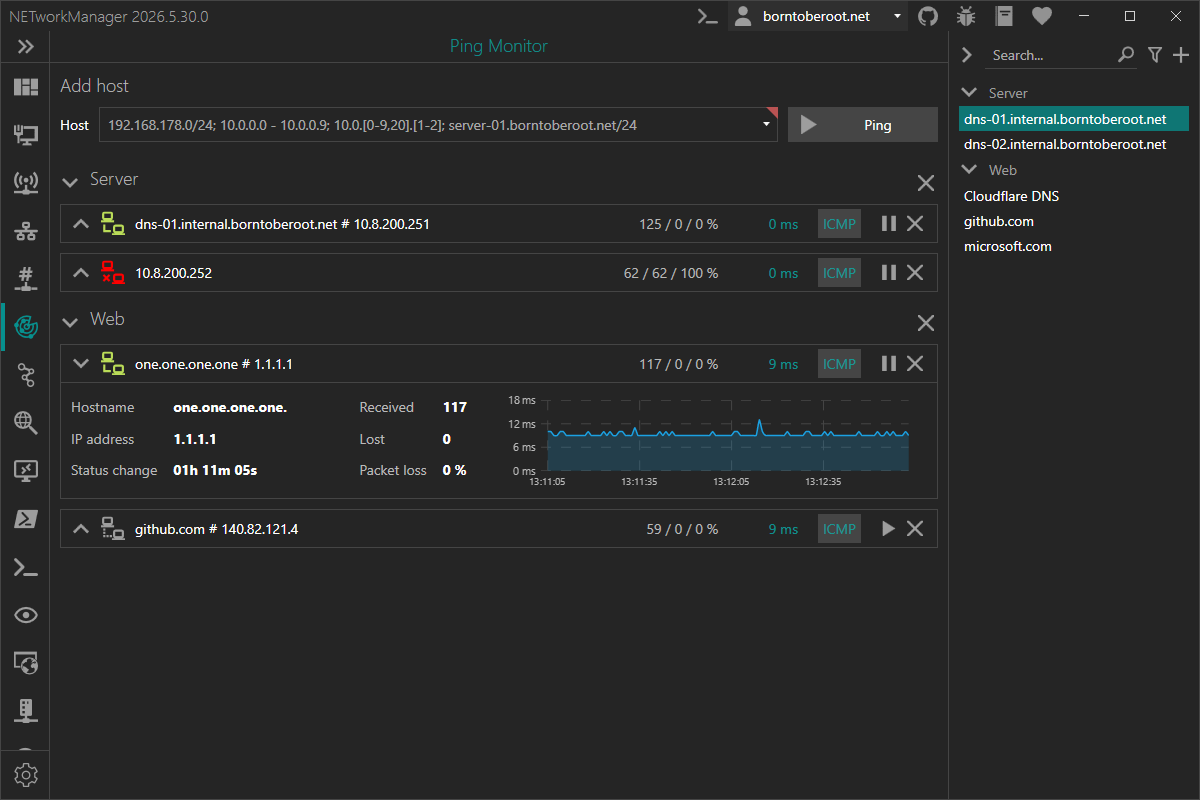
Example inputs
| Host | Description |
|---|---|
10.0.0.1 | Single IP address (10.0.0.1) |
10.0.0.100 - 10.0.0.199 | All IP addresses in a given range (10.0.0.100, 10.0.0.101, ..., 10.0.0.199) |
10.0.0.100-199 | All IP addresses in a given range, shorthand for the last octet (10.0.0.100, ..., 10.0.0.199) |
10.0.0.0/23 | All IP addresses in a subnet (10.0.0.0, ..., 10.0.1.255) |
10.0.0.0/255.255.254.0 | All IP addresses in a subnet (10.0.0.0, ..., 10.0.1.255) |
10.0.[0-9,20].[1-2] | Multiple IP addresses like (10.0.0.1, 10.0.0.2, 10.0.1.1, ...,10.0.9.2, 10.0.20.1) |
borntoberoot.net | Single IP address resolved from a host (10.0.0.1) |
borntoberoot.net/24 | All IP addresses in a subnet resolved from a host (10.0.0.0, ..., 10.0.0.255) |
borntoberoot.net/255.255.255.0 | All IP addresses in a subnet resolved from a host (10.0.0.0, ..., 10.0.0.255) |
Multiple inputs can be combined with a semicolon (;). A column pasted from Excel (one entry per line) is converted to the semicolon-separated form automatically.
Example: 10.0.0.0/24; 10.0.[10-20].1; 10.0.0.100-199
Chart
Each monitored host shows a latency chart over time. By default the chart displays the last 2 minutes (see Chart time (seconds)) and scrolls automatically as new results arrive (live mode).
You can interact with the chart to inspect past results:
| Action | Description |
|---|---|
| Mouse wheel | Zoom in and out on the time axis |
| Left mouse button + drag | Pan the chart left and right |
| Right mouse button + drag | Zoom into the selected section |
When you zoom or pan, the chart leaves live mode and stops scrolling. A Live button then appears in the top-right corner of the chart — click it to return to live mode and resume auto-scrolling.
Groups
Hosts are grouped by their profile group (or Hosts if none is set). Each group header shows a live count of hosts that are up, down and paused (Paused is only shown while at least one host in the group is paused).
Click/tap the ⋮ icon on the right of a group header to open its action menu:
| Action | Description |
|---|---|
| Start | Starts every host in the group that isn't currently running |
| Pause | Pauses every host in the group that's currently running |
| Close | Stops and removes every host in the group |
Context menu
Right-click a monitored host (anywhere except the chart) to open the context menu:
| Action | Description |
|---|---|
| Copy | Copies the selected information to the clipboard |
| Export... | Exports the results of the host to a file |
Notifications
When a monitored host changes its reachability state (up → down or down → up), a small notification popup can appear in the bottom-right corner of the primary screen, optionally accompanied by a system sound.
- The popup shows a status icon (green when the host is up, red when it is down), the hostname (or the IP address as a fallback) and the current status (Host is up / Host is down).
- Multiple notifications stack upwards, so several hosts changing state at once are all visible.
- Click anywhere on a notification to bring the main window to the front. Use the × button to dismiss a single notification without opening the main window.
- Each notification closes automatically after a configurable duration; a thin progress bar at the bottom shows the remaining time.
- To avoid noise from flapping hosts, a state change is only reported after a configurable number of consecutive successes (Success threshold) or failures (Failure threshold).
- The initial state of a host (established when monitoring starts) never triggers a notification or sound — only later transitions do.
When many hosts change state at almost the same time (for example, when an uplink goes down and all hosts time out together), every host still shows its own popup, but the sound is played only once within a short interval to avoid an overlapping cacophony.
Profile
Inherit host from general
Inherit the host from the general settings.
Type: Boolean
Default: Enabled
Host
Hostname or IP address to ping.
Type: String
Default: Empty
Example:
server-01.borntoberoot.net1.1.1.1
Settings
Timeout (ms)
Timeout in milliseconds for each ICMP packet, after which the packet is considered lost.
Type: Integer [Min 100, Max 15000]
Default: 4000
Buffer
Buffer size of the ICMP packet.
Type: Integer [Min 1, Max 65535]
Default: 32
TTL
Time to live of the ICMP packet.
Type: Integer [Min 1, Max 255]
Default: 64
Don't fragment
Don't fragment the ICMP packet.
Type: Boolean
Default: Enabled
Time (ms) to wait between each ping
Time in milliseconds to wait between each ping.
Type: Integer [Min 100, Max 15000]
Default: 1000
Chart time (seconds)
Time range in seconds displayed in the latency chart.
Type: Integer [Min 30, Max 3600]
Default: 120
Expand host view
Expand the host view to show more information when the host is added.
Type: Boolean
Default: Disabled
Show notification popup on status change
Show a notification popup in the bottom-right corner of the primary screen when a monitored host changes its reachability state. See Notifications for details.
Type: Boolean
Default: Enabled
Play sound on status change
Play a system sound when a monitored host changes its reachability state. This is independent of the popup — you can enable the sound without the popup, or vice versa.
Type: Boolean
Default: Enabled
Success threshold
Number of consecutive successful pings required before a Host is up notification is shown. Higher values reduce noise from flapping hosts.
Type: Integer [Min 1, Max 10]
Default: 1
Failure threshold
Number of consecutive failed pings (timeouts) required before a Host is down notification is shown. Higher values reduce noise from flapping hosts.
Type: Integer [Min 1, Max 10]
Default: 3
Display duration (seconds)
Time in seconds the notification popup is shown before it closes automatically.
Type: Integer [Min 3, Max 60]
Default: 10