System-Wide Policies for Enterprise Deployments

NETworkManager now supports system-wide policies, giving administrators centralized control over application settings across all users on a machine.
What Are System-Wide Policies?
System-wide policies allow administrators to enforce specific settings for all users on a machine. These policies override user-specific settings and provide centralized control over application behavior in enterprise environments.
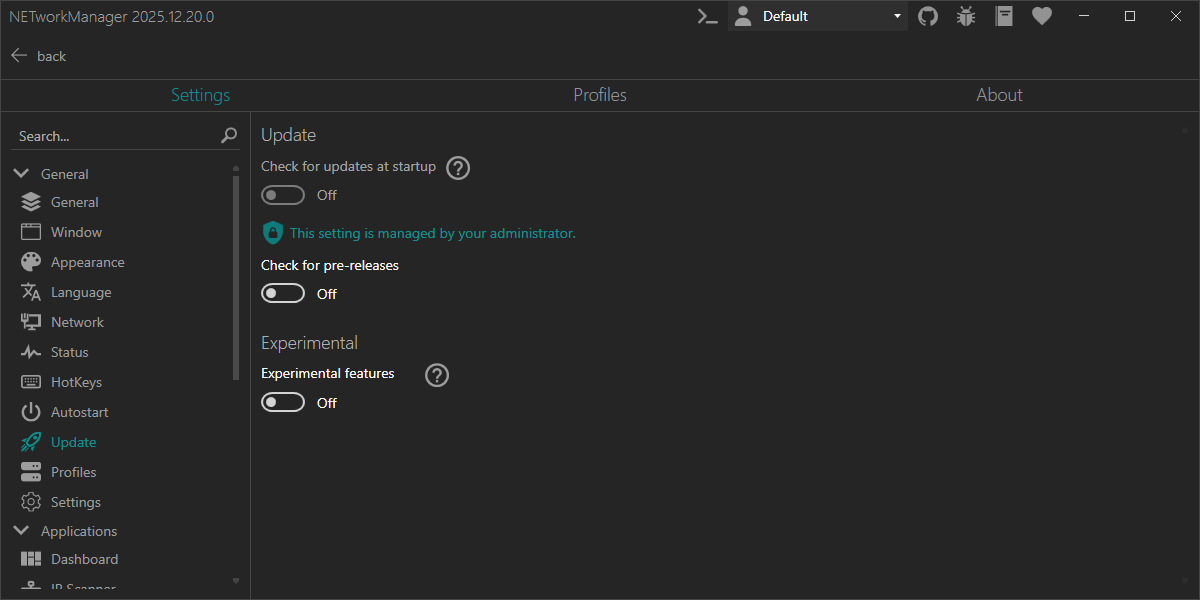
When a policy is active, the corresponding setting is locked in the UI and displays a shield icon along with a message indicating that the setting is managed by an administrator. Users can see the enforced value but cannot change it.
How to Configure Policies
Policies are defined in a config.json file placed in the application installation directory (the same folder as NETworkManager.exe). When this file exists, the application loads the policies at startup and applies them with precedence over user settings. An example file (config.json.example) is included in the application installation directory for reference.
File location:
- Installed version:
C:\Program Files\NETworkManager\config.json(or your custom installation path) - Portable version: Same directory as
NETworkManager.exe
File format:
{
  "Policy_Name": true
}
Property names follow the pattern Section_SettingName. You can find the available policy names and values in the corresponding setting's documentation.
Example Policy
For example, the Update_CheckForUpdatesAtStartup policy controls whether the application checks for new program versions on GitHub when the application is launched. The Profiles_FolderLocation and Settings_FolderLocation policies allow administrators to redirect profile and settings storage to a centralized location, such as a network share or a custom local path.
Values:
Update_CheckForUpdatesAtStartup:true— Force enable automatic update checks at startup for all usersfalse— Force disable automatic update checks at startup for all users- Omit the property — Allow users to control this setting themselves
Profiles_FolderLocation/Settings_FolderLocation:- Absolute path (e.g.,
C:\\Path\\To\\Profiles) - Path with environment variables (e.g.,
%UserProfile%\\NETworkManager\\Settings) - UNC path (e.g.,
\\\\Server\\Shared\\NETworkManager\\Profiles) - Omit the property — Allow the default location logic to apply
- Absolute path (e.g.,
Example config.json:
{
  "Update_CheckForUpdatesAtStartup": false,
  "Profiles_FolderLocation": "\\\\Server\\Shared\\NETworkManager\\Profiles",
  "Settings_FolderLocation": "%UserProfile%\\NETworkManager\\Settings"
}
- The file must be named exactly
config.json - The file must contain valid JSON syntax
- Changes to the file require restarting the application to take effect
- If the file doesn't exist or contains invalid JSON, it will be ignored and user settings will apply
Deploying Policies
-
Create the configuration file — Use the
config.json.exampleas a template, rename it toconfig.json, and set your desired policy values. -
Deploy to installation directory — Place the
config.jsonfile in the same directory asNETworkManager.exe. For MSI installations, this is typicallyC:\Program Files\NETworkManager\. -
Deploy methods:
- Group Policy — copy the file to the installation directory (use Group Policy preferences or a startup script)
- Configuration management tools — SCCM/ConfigMgr, Microsoft Intune, Ansible, etc.
- Scripts and deployment toolkits — PowerShell scripts, PSAppDeployToolkit
- Manual deployment — hand-copy for small-scale rollouts
-
Verification:
- Launch the application
- Navigate to Settings > Update (e.g., "Check for updates at startup")
- Verify the shield icon and the administrator message appear and that the control is disabled
Ensure the config.json file has appropriate permissions so that regular users cannot modify it. On standard installations in Program Files, this is automatically enforced by Windows file permissions.
Request More Policies
Additional policy options will be added in future releases to provide more granular control over application behavior. If you have specific requirements for system-wide policies in your organization, please submit a feature request via the GitHub issue tracker to help us prioritize.
Upgrade now to the latest version of NETworkManager to use this feature.
More information is available in the official documentation.
If you find any issues or have suggestions for improvement, please open an issue on GitHub.