Run Command, Visual Traceroute, a Smarter IP Scanner, RDAP and a Fresh Look

The new release of NETworkManager (version 2026.11.15.0) is one of the biggest so far: a redesigned interface with new themes and accent colors, an IP Scanner that finds and identifies far more devices, a run command to start any tool from the keyboard, a world map for Traceroute, and the new RDAP tool. On top of that, it contains more than 150 improvements and more than 150 bug fixes across all tools.
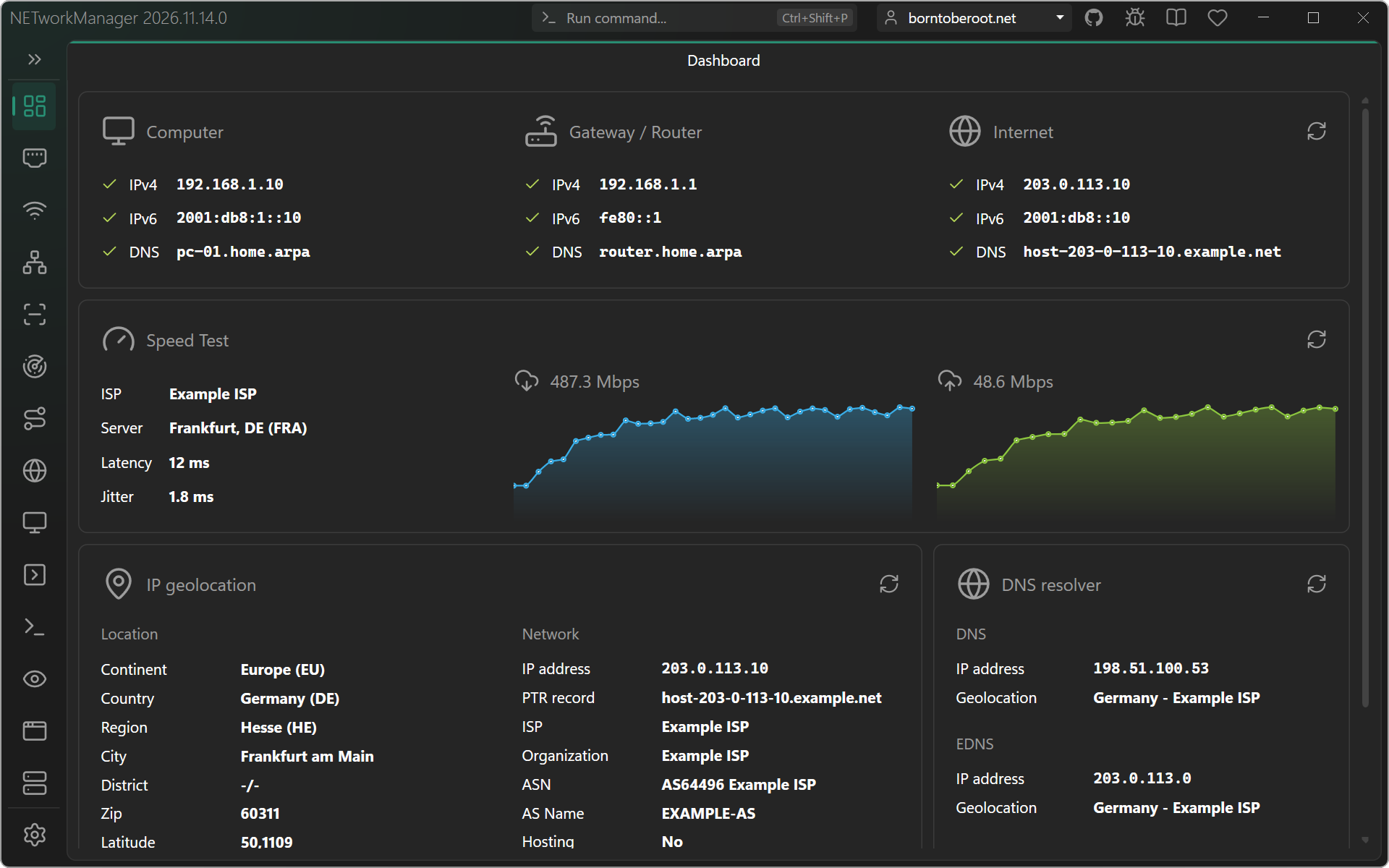
A fresh look
The whole interface was redesigned for a calmer, more modern look - without changing where things are:
- New themes: Black, Midnight, Steel and Indigo (dark), Mist, Soft and Paper (light) - and new accent colors like Sky, Ocean, Mint, Rose, Coral, Gold, Lavender, Slate and Graphite. Every accent works with every theme.
- New layout: navigation, tool and profiles as rounded boxes on a tinted window frame, tabs like in VS Code, rounded windows on Windows 11, and an optional accent glow.
- One icon family (Lucide) instead of five icon packs, thin-line icons with the same size everywhere.
- Easier to read: Segoe UI Variable on Windows 11, technical values (IP / MAC addresses, ports, hostnames) in Cascadia Mono, clearer status colors in light and dark themes.
- Subtle animations for dialogs, navigation and expanders - following the Windows setting, or turned off in the settings or for all users with a system-wide policy.
Choose your theme and accent in Settings > Appearance.
A smarter IP Scanner
The IP Scanner received the largest update in this release. It finds more devices, tells you what they are, and can watch a network for changes.
Find more hosts - a host is found by whichever probe answers first: ping, open or refused TCP ports, NetBIOS, SNMP, or - in the local subnet - its ARP / NDP entry. Devices that block ping and all ports (e.g. a Windows client in a public network, a phone or an IoT device) are found as well. The tooltip of the status shows how a host was detected (e.g. Up (detected by Ping, TCP)).
Know what you found - optional probes fill in what the device is:
- OS guessed from the TTL (
Windows,Linux / Unix,Network device), or the exact Windows version (e.g.Windows 11 25H2) with Read Windows host information (beta) - including domain, time offset and logged-on users. - mDNS names (
.local) of Apple devices, printers and IoT devices. - Web pages: title, server and TLS certificate of routers, printers and NAS.
- SNMP name, description and location of switches and printers (
v1/v2c,v3via profiles). - Roles: this computer, the default gateway and the DNS and DHCP servers are marked.
Watch the network - every scan is compared with the previous one: hosts that are New, Gone or have a changed MAC address are highlighted. Automatically scan every repeats the scan (1 min to 1 h) and shows a notification when something changed.
Faster and easier to use - an empty /24 network is scanned in about 8 seconds instead of about 50, hosts appear as soon as they answer, and results can be searched while the scan is running. Exclude addresses with ! (e.g. 10.0.0.0/24; !10.0.0.1), scan all local subnets with one click, and rescan single hosts from the context menu.
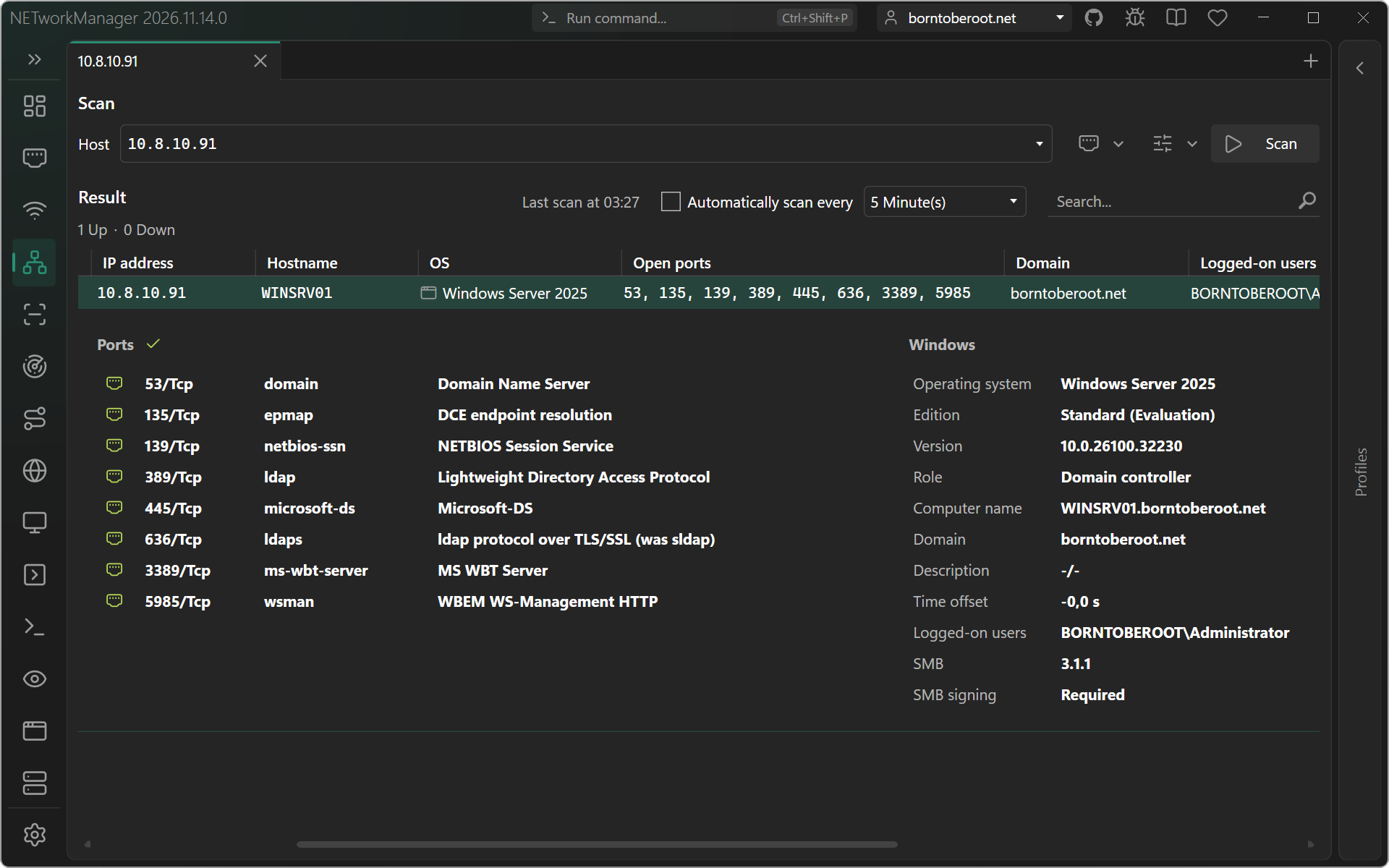
Reading the Windows host information with credentials needs care in a domain - learn how NETworkManager prevents account lockouts in the FAQ. All probes and settings are explained in the IP Scanner documentation.
Run Command
Press Ctrl+Shift+P, type what you want to do and press Enter - NETworkManager opens the right tool and runs it:
ping 10.0.0.1
dns borntoberoot.net 1.1.1.1 aaaa
portscan 10.0.0.1 webserver
rdp @server-01
subnet 10.0.0.0/16 /24
- Short aliases for every tool (e.g.
ping,dns,rdp,ssh,geo,wol) and profiles with@(e.g.rdp @server-01). - Suggestions while you type: recent commands, profiles, port profiles and types -
Tabcompletes,Up/Downselects. - Just a target is enough: type
10.0.0.1,server-01or00:11:22:33:44:55and get the commands that accept it. Optionally, a target in the clipboard is suggested. - The input is validated like in the tool itself, and the dialog shows how it was understood (e.g.
Hosts: borntoberoot.net,Type: AAAA). - Open it from the Run command... box in the title bar, or from anywhere in Windows with an optional global hotkey (
Ctrl+Alt+P).
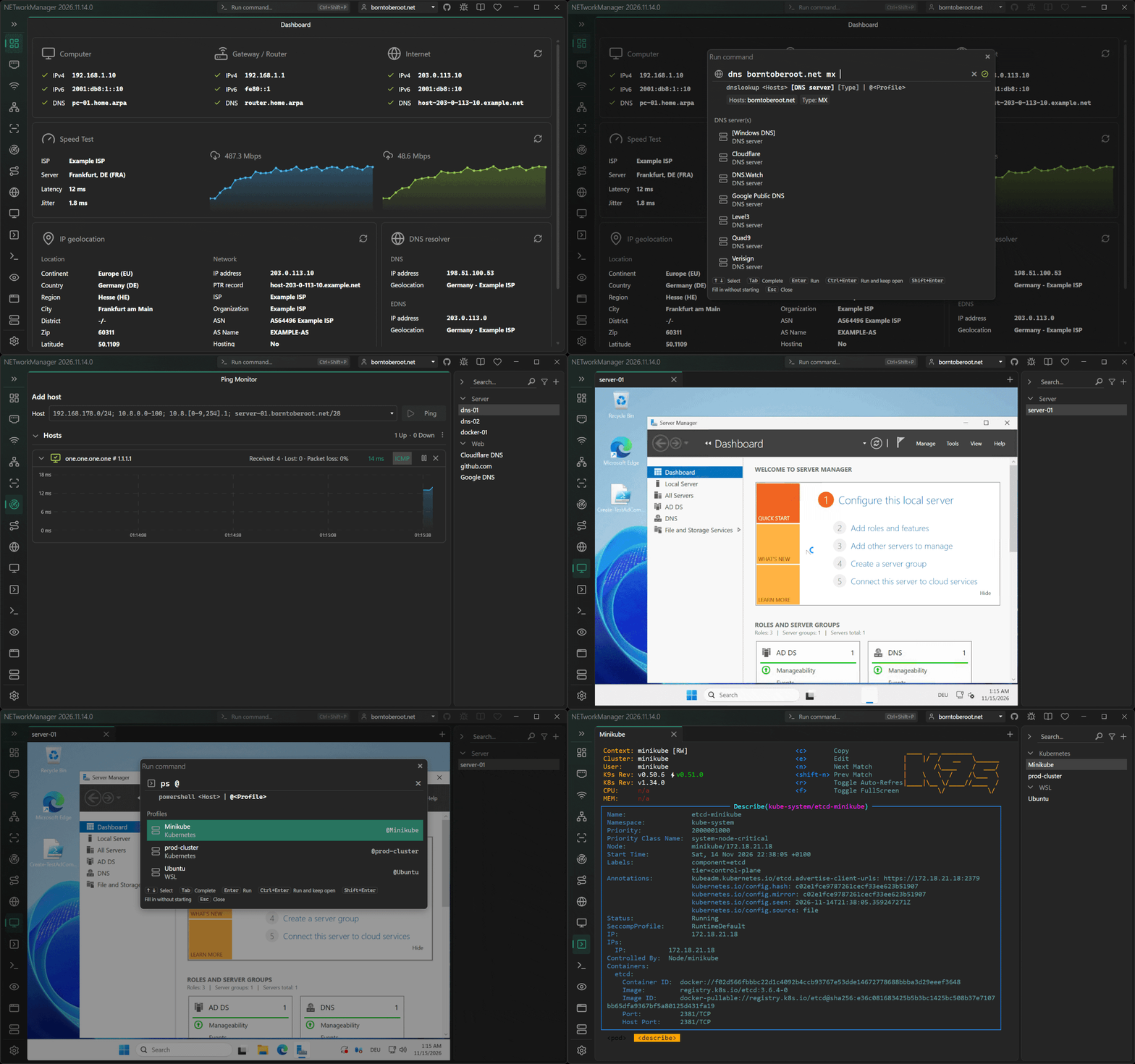
All commands and their syntax are listed in the Run Command documentation.
Visual Traceroute
Traceroute now shows the route on a world map below the hop list. Each hop with a resolved geolocation gets a marker, consecutive hops are connected with curved arrows in the direction of the trace. Hover a marker to see its location, ISP / AS number, hostname, IP address and average round-trip time. Zoom with the mouse wheel, drag to pan, or collapse the map if you don't need it.
The map works offline and is shown when Check IP geolocation and Show map are enabled.
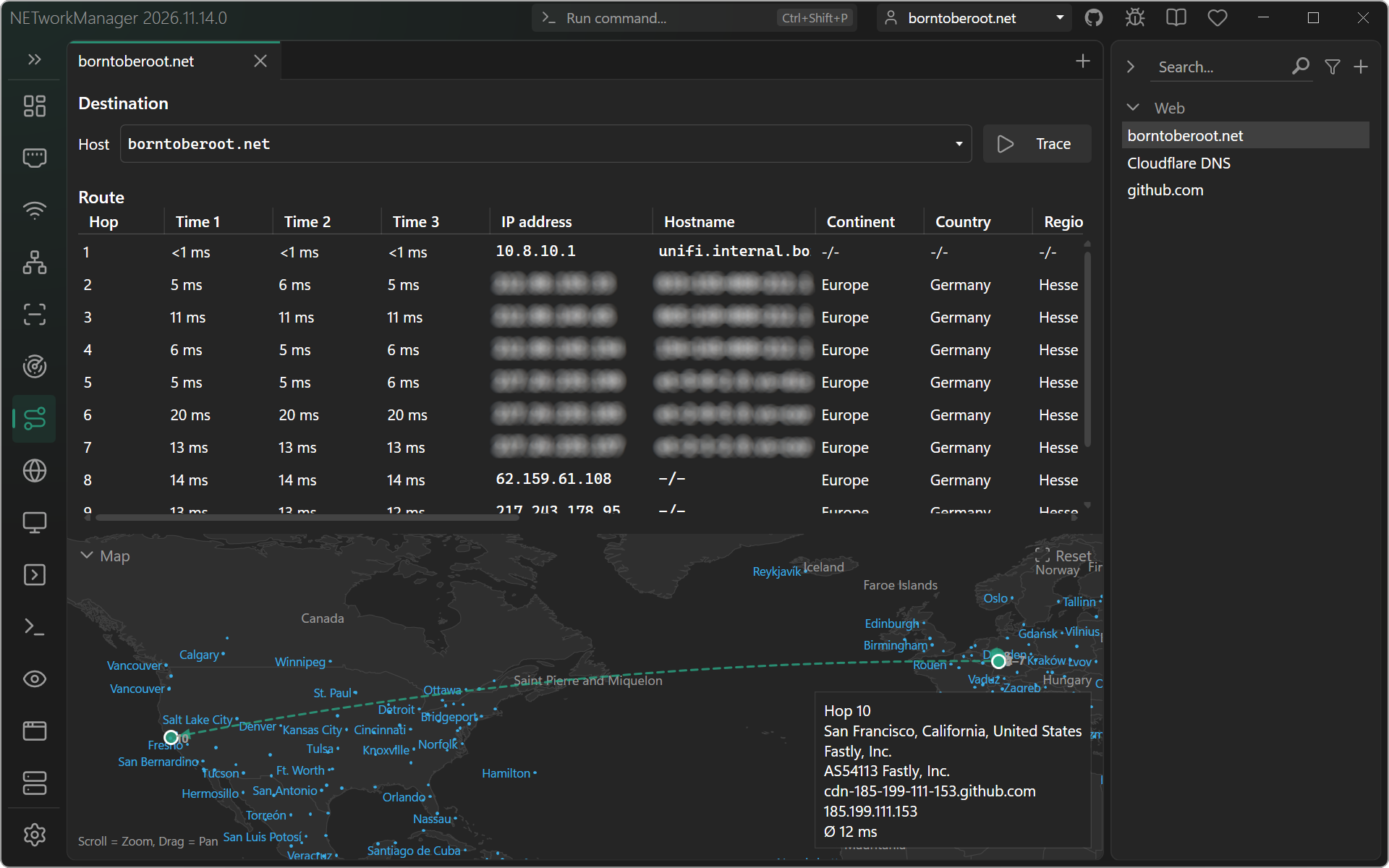
More details in the Traceroute documentation.
RDAP
The new RDAP tool looks up who a domain, an IP address, an AS number or an organization is registered to - via the Registration Data Access Protocol, the standardized successor of Whois. Results are structured (details, events, nameservers, DNSSEC, contacts), come over HTTPS, and NETworkManager finds the responsible registry automatically, including the referral to the registrar for domains like .com. If a registry only offers Whois, the domain opens in the Whois tool with one click.
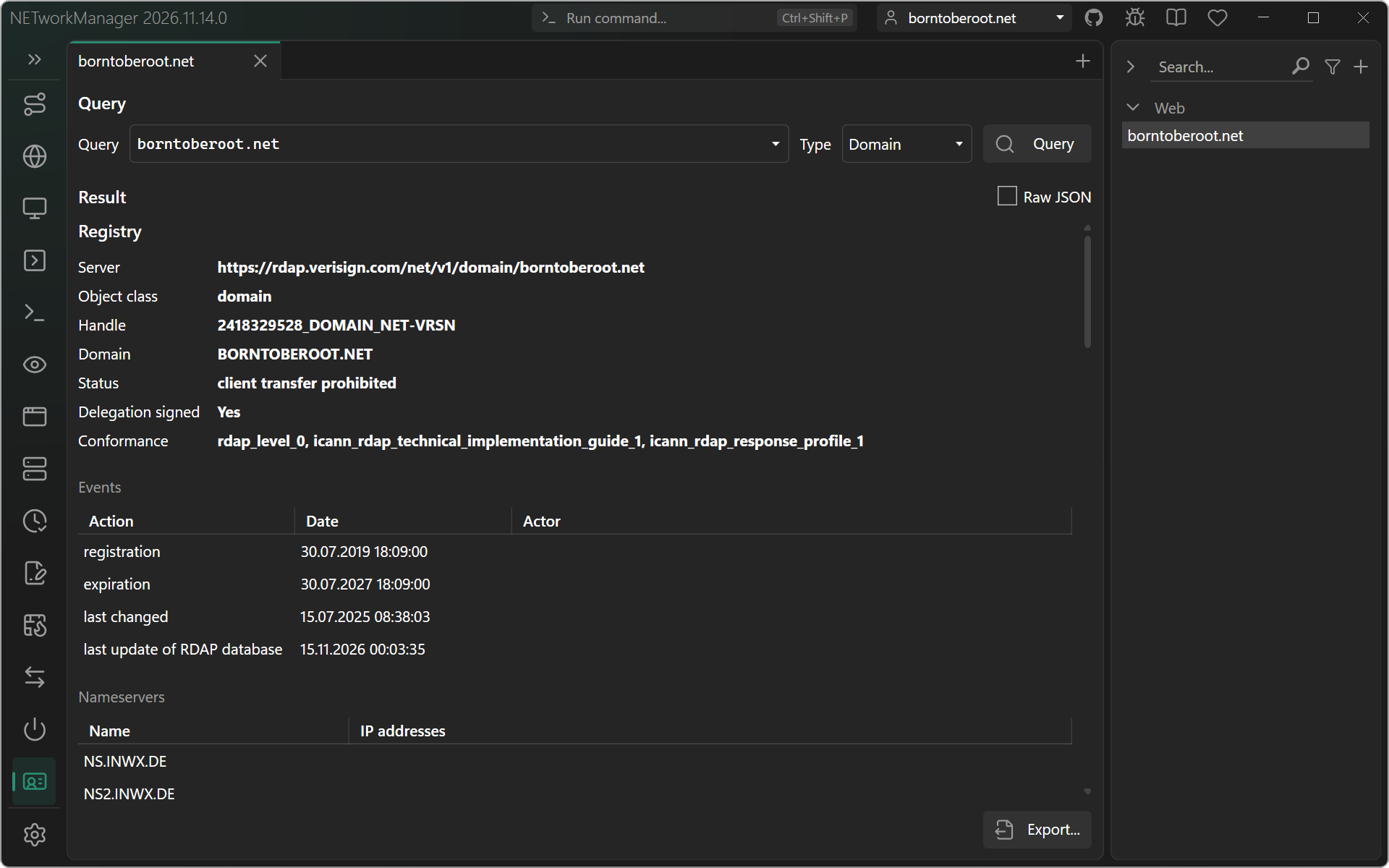
RDAP is also available from the context menu of the IP Scanner and Traceroute (e.g. the AS number of a hop) and from the run command (rdap borntoberoot.net).
Learn more in the deep dive Introducing RDAP and the RDAP documentation.
More highlights
- WiFi: see new, gone and changed access points since the last scan, with notifications.
- Tabs: dynamic tab width, and dragged-out tabs can be dropped anywhere on a tab bar - a hint shows where.
- DNS: a list of DNS servers with ports, and a DNS suffix for bare hostnames in all tools.
- ARM64 builds are available.
Hundreds of improvements and bug fixes
Besides the highlights, this release contains more than 150 improvements and more than 150 bug fixes - from faster scans and consistent exports to many small details in every tool. The complete list is in the changelog.
Before you update
The exports (CSV, XML, JSON) of all tools now use the same format: columns may have been reordered or added, and values are formatted consistently (e.g. numbers without unit, dates as yyyy-MM-dd HH:mm:ss.fff). If you process exports with scripts, check them after the update - see Export format.
Try it now
Download the latest version of NETworkManager.
If you find any issues or have suggestions, please open an issue on GitHub.