Introducing Firewall

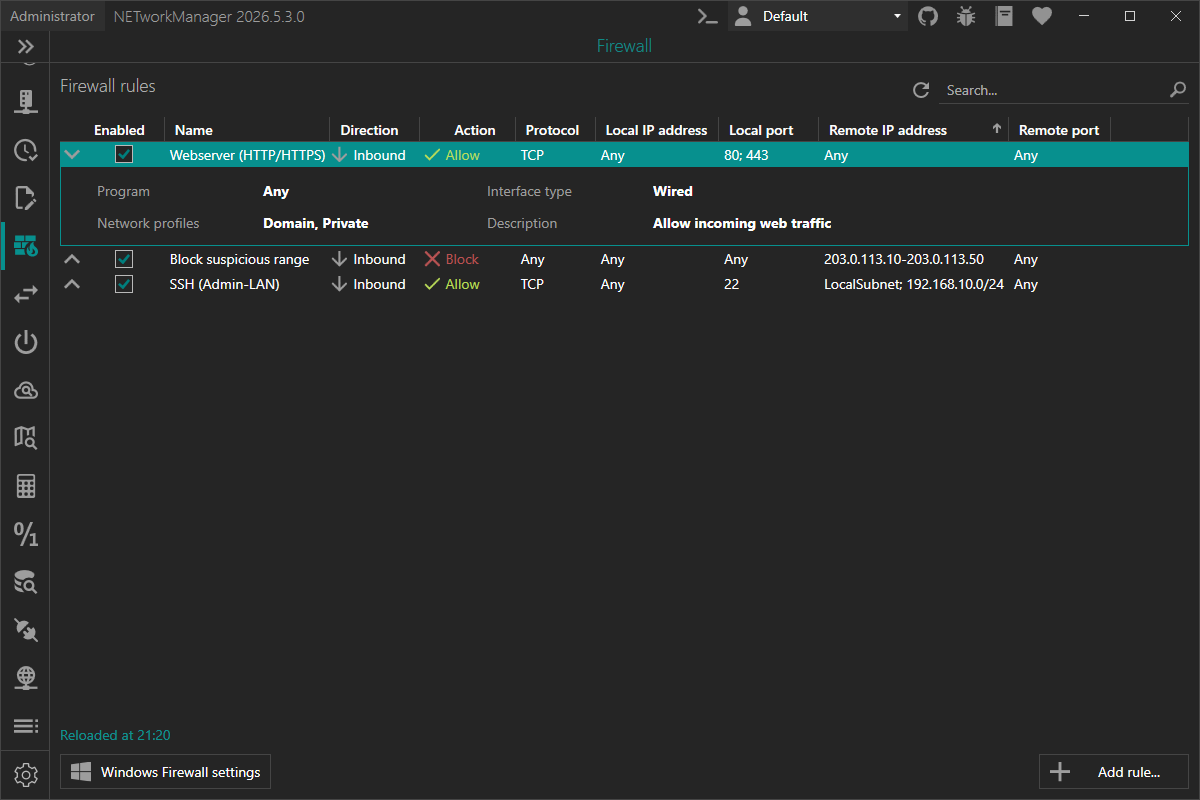
NETworkManager introduces a new feature, the Firewall. You can now manage Windows Firewall rules created by NETworkManager directly from within the app — no more jumping between MMC snap-ins for day-to-day tasks.
This is especially useful if you frequently spin up local services (lab environments, dev boxes, game servers, small internal tools) and need a quick and repeatable way to open or block ports, restrict traffic to specific IP ranges, or scope rules to profiles like Domain, Private, or Public.
Manage rules safely (and without touching your system rules)
By default, the Firewall view focuses on rules managed by NETworkManager.
Every rule created via NETworkManager is stored with a NETworkManager_ prefix in the Windows Firewall rule display name. This makes it easy to distinguish "your" rules from system-managed or third-party rules — and it allows NETworkManager to filter the list so you only see what it owns.
If you need the full picture, enable Show all rules in Settings > Firewall: all active Windows Firewall rules are shown, with an icon that tells whether a rule is managed by NETworkManager, by another application or by a policy (Group Policy / MDM). Rules of other applications can be enabled, disabled or deleted, rules from a policy can't be changed locally - and every rule can be used as a template for a new one.
What you can do with the new Firewall feature
- View firewall rules created by NETworkManager (or all rules, see above)
- Add new inbound or outbound rules
- Edit existing rules (also with a double-click)
- Create a new rule based on an existing one with Copy as...
- Enable, disable or delete one or several rules at once
- Search by name, program, ports, addresses and more
- Copy or export rule information
- Refresh the list with
F5 - Open the native Windows Firewall console (
WF.msc) via the Windows Firewall Settings button
Add / Edit rules — with the options you actually need
When creating or editing a rule, NETworkManager exposes the most common and important fields in a clear dialog:
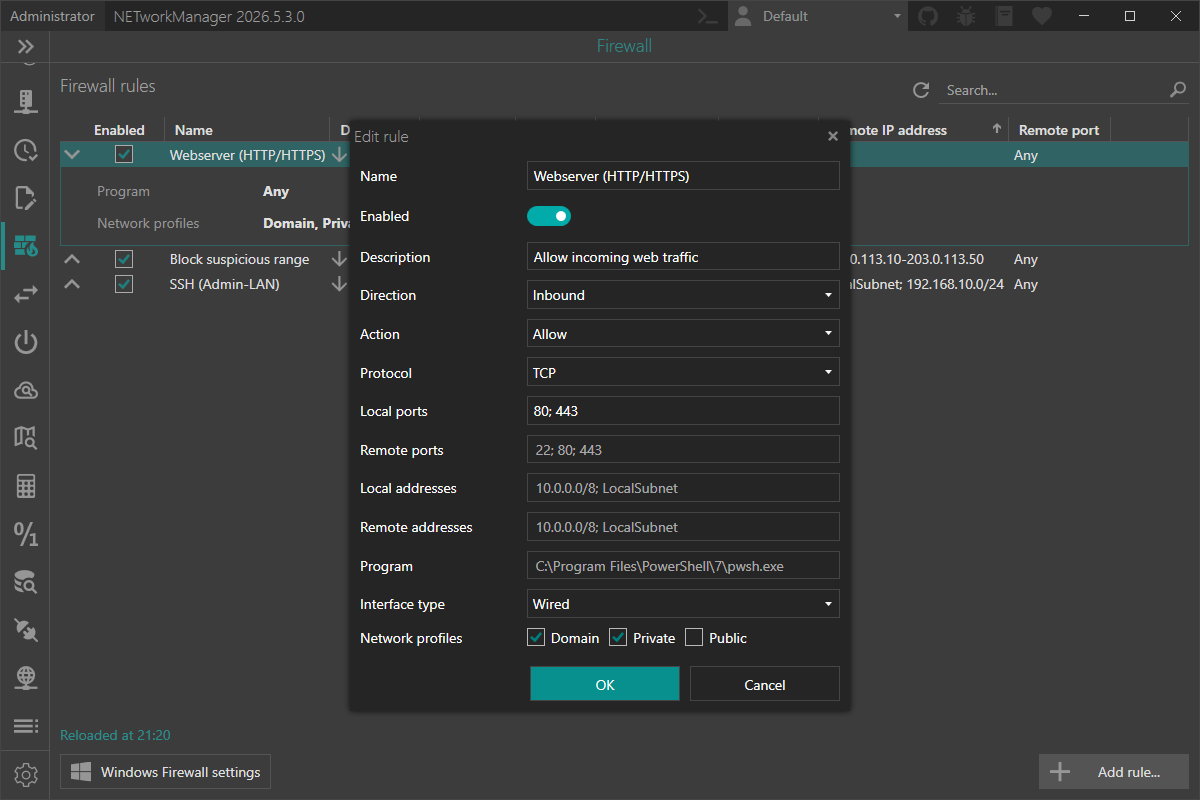
- Name: Display name of the rule (the
NETworkManager_prefix is added automatically and hidden in the UI) - Enabled: Whether the rule is active right after creation
- Description: Optional description of the rule
- Direction: Inbound / Outbound
- Action: Allow / Block
- Protocol: Any, TCP, UDP, ICMPv4, ICMPv6, GRE, L2TP
- Local / Remote ports: Available for TCP and UDP; multiple ports and ranges separated by
; - Local / Remote addresses: Supports single IPs, ranges and subnets (CIDR and subnet masks); remote addresses also keywords such as
LocalSubnetorInternet - Program: Limit the rule to a specific executable (optional, select it with a file dialog)
- Interface type: Any, Wired, Wireless, RemoteAccess
- Network profiles: Domain / Private / Public (at least one must be selected)
You can find all details (including examples for port and address formats) in the official documentation.
Administrator privileges
Managing firewall rules requires elevated rights. If NETworkManager is not running as administrator, the Firewall view is read-only. Use the Restart as administrator button to relaunch NETworkManager with the required privileges.
Try it now
The Firewall is available in the latest version of NETworkManager.
If you find any issues or have suggestions for improvement, please open an issue on GitHub.